Animations
Add animation behaviors to your citizens. Animations can be triggered in six different ways — on interaction, on attack, on a timer, when a player enters or exits a range, or set as the default idle animation.
Opening the Animation Editor
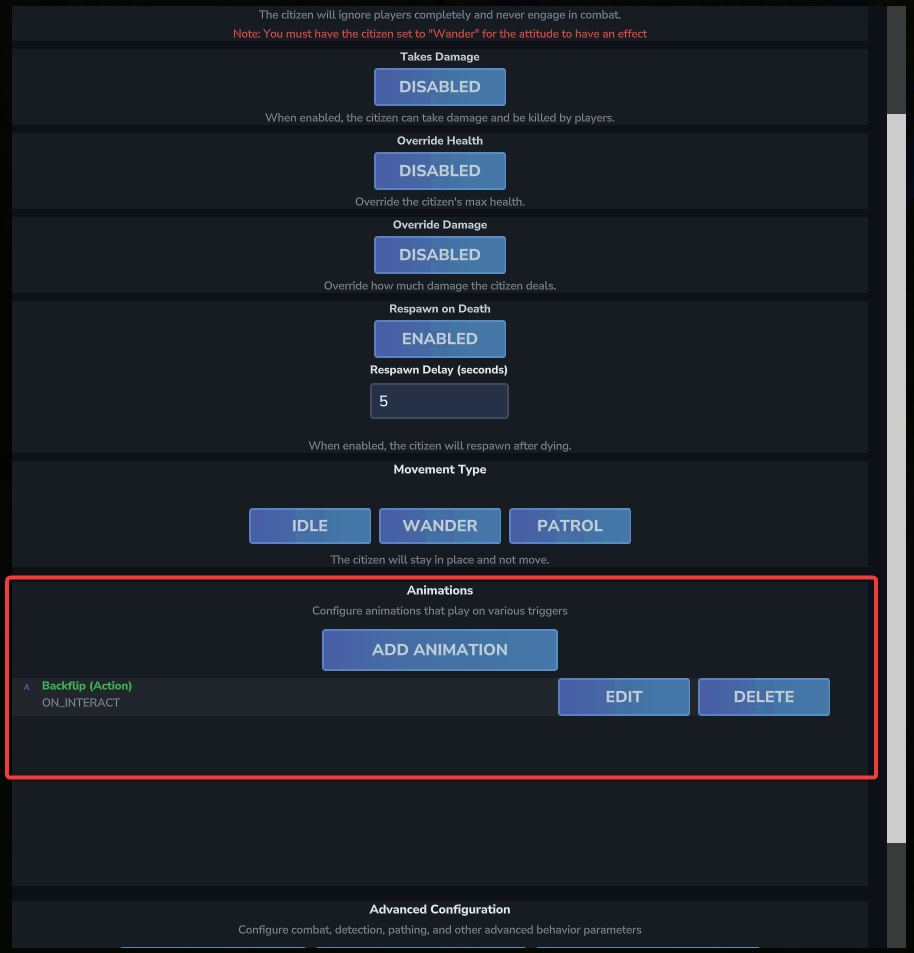
Animations are managed from Edit Citizen → Behaviors → Animations. The Animations section lists all configured animation behaviors. Click Add Animation to create a new one, or use the Edit and Delete buttons on each entry.
Trigger Type
When adding or editing an animation, the first thing to set is the Trigger Type — what causes the animation to play.
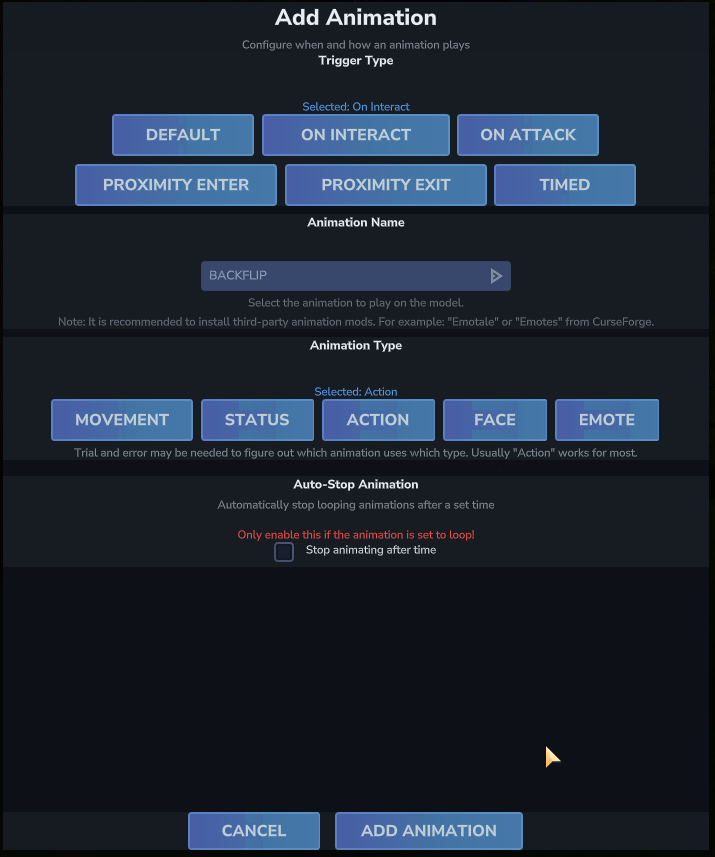
| Trigger Type | When it Plays | Extra Setting |
|---|---|---|
| Default | Set as the citizen's baseline / idle animation for a slot. Plays continuously. Other animation types can return to this when they stop. | None |
| On Interact | Plays when a player interacts with the citizen (F key or left click). | Auto-Stop (optional) |
| On Attack | Plays when the citizen performs an attack. | Auto-Stop (optional) |
| Proximity Enter | Plays when a player walks within the specified range of the citizen. | Range (blocks) + Auto-Stop (optional) |
| Proximity Exit | Plays when a player walks outside the specified range of the citizen. | Range (blocks) + Auto-Stop (optional) |
| Timed | Plays repeatedly on a fixed interval. | Interval (seconds) + Auto-Stop (optional) |
Animation Name
Select the animation from the dropdown. The dropdown is automatically populated with animations available for the citizen's current model/entity type. If the list is empty, the citizen's model may not have animations registered, or you may need to install an animation mod.
Animation Mods
It is recommended to install a third-party animation mod to expand the available animations. Popular options include Emotale and Emotes, both available on CurseForge.
Animation Type (Slot)
The Animation Type (also called the animation slot) determines which animation layer the animation plays on. Hytale supports multiple simultaneous animation layers, so a citizen can, for example, play a walking animation on the Movement slot while also playing a waving animation on the Emote slot.
| Slot | Number | Typical Use |
|---|---|---|
| Movement | 0 | Walking, running, idle standing animations |
| Status | 1 | Status effects or persistent overlay animations |
| Action | 2 | One-off actions — most animations work here |
| Face | 3 | Facial expressions |
| Emote | 4 | Full-body emotes |
Trigger-Specific Settings
Timed — Interval
When using the Timed trigger, set the Interval (seconds) — how many seconds between each play. Minimum: 0.5s.
Proximity Enter / Exit — Range
When using a Proximity trigger, set the Range (blocks) — the distance threshold at which the trigger fires. Minimum: 1 block, Maximum: 100 blocks.
Auto-Stop Animation
For all trigger types except Default, you can optionally enable Stop animating after time. This is useful when an animation loops: it will automatically play a different (stop) animation after the specified number of seconds have passed since the trigger last fired.
Only Enable for Looping Animations
Only enable Auto-Stop if the animation you selected is set to loop. Enabling it on a non-looping animation has no useful effect.
When Auto-Stop is enabled, two more fields appear:
- Stop After (seconds) — How many seconds after the last trigger before the stop animation plays.
- Stop Animation — The animation to play when stopping. Leave this empty to fall back to the Default animation configured for the same slot (if one exists).
Examples
Wave when a player approaches
Trigger Type:   Proximity Enter
Animation Name: wave
Animation Type: Action (slot 2)
Range: 8 blocksBow on interaction, then return to idle
Trigger Type:     On Interact
Animation Name:   bow
Animation Type:   Action (slot 2)
Stop After Time:  enabled
Stop After:       2.0 seconds
Stop Animation: idlePeriodic idle animation every 10 seconds
Trigger Type:     Timed
Animation Name:   look_around
Animation Type:   Action (slot 2)
Interval: 10.0 secondsMultiple Animations
A citizen can have multiple animation behaviors active at once. For example, you can combine a Default idle on the Movement slot with an On Interact bow on the Action slot — they'll play on separate layers simultaneously.